Text to PDF Converter for Notes, Markdown and Code
Text to PDF without a word processor: drop a .txt or .md file, or paste your text, check the live preview of page one, then save the PDF. The words never leave your device.
Converted on this device. Your files are never uploaded.
How it works
Bring the text
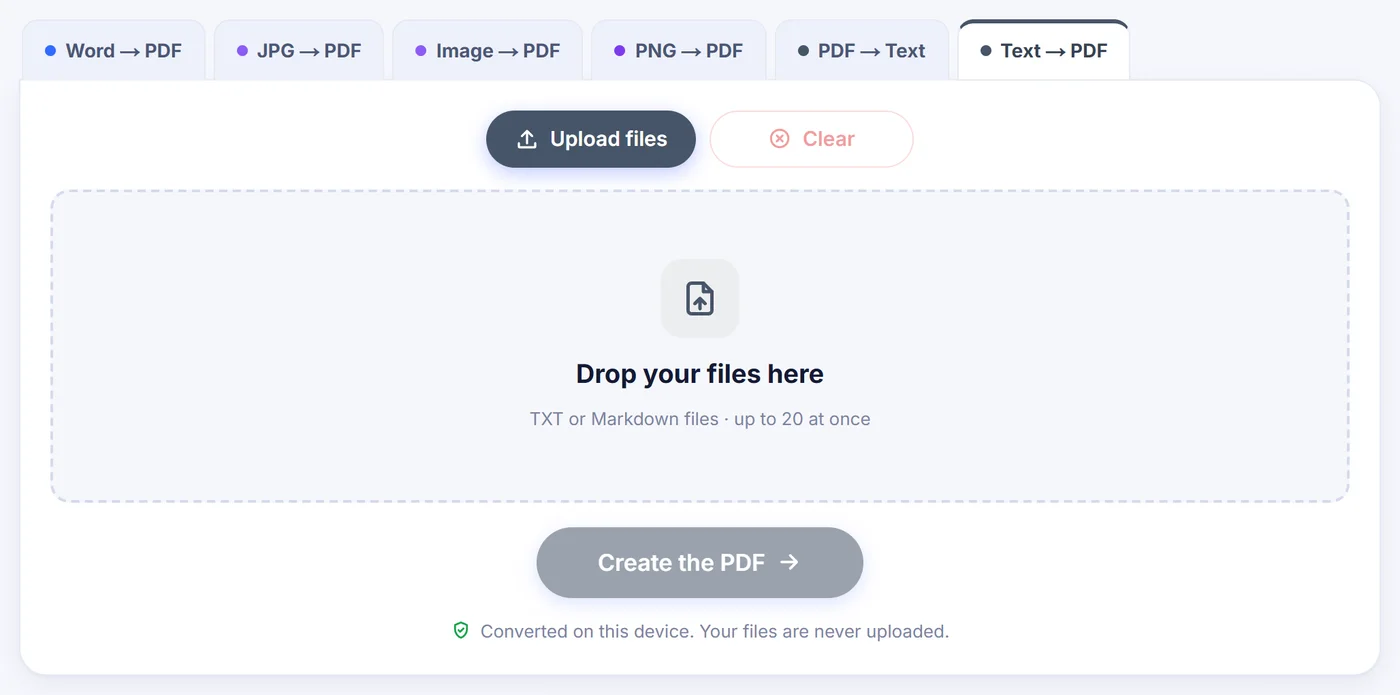
Drop .txt or .md files, or press "Or paste text" and put anything from a chat log to a block of spreadsheet cells into the box.
Shape the pages
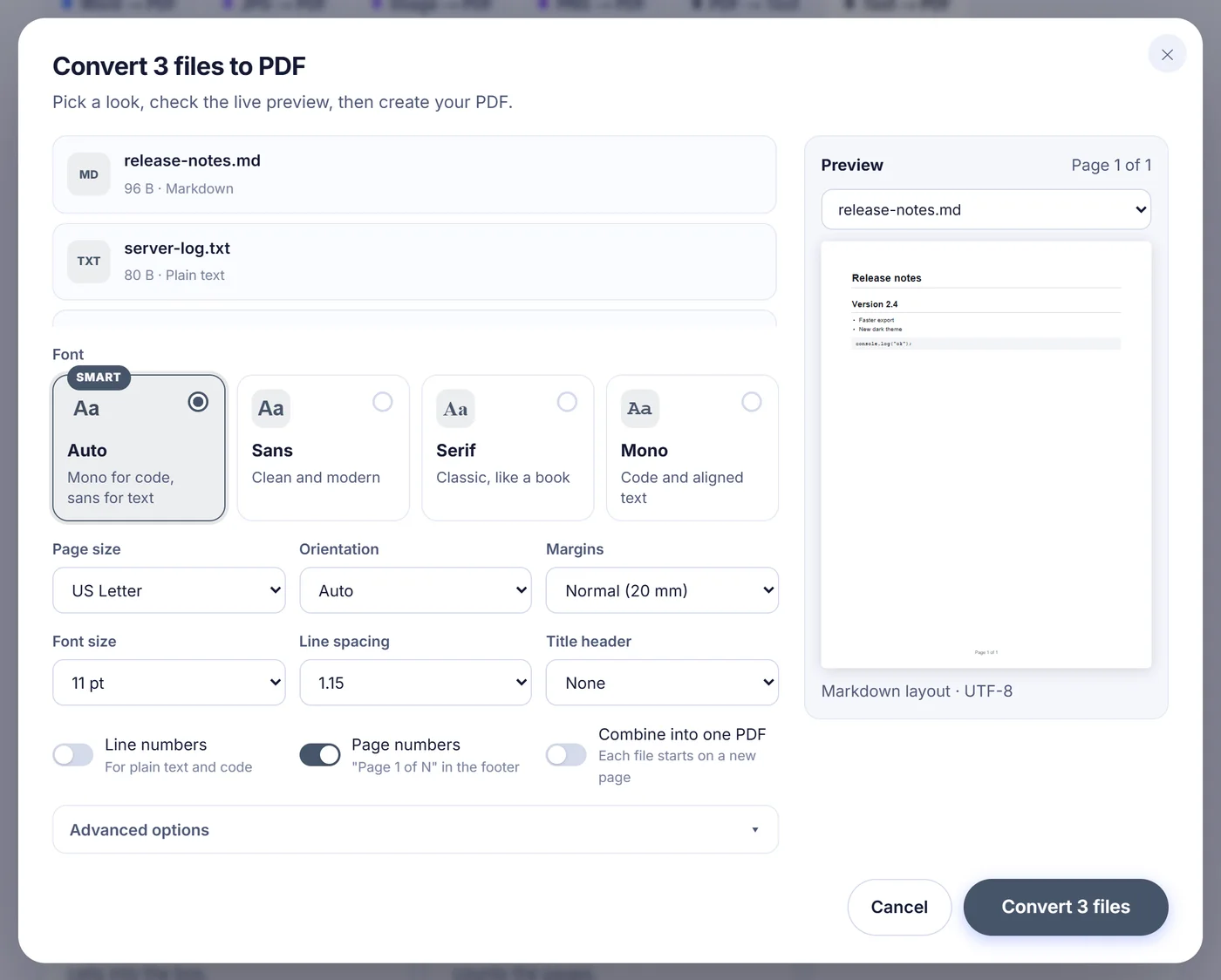
Choose a typeface, paper, margins, spacing and numbering while a live preview redraws the first page and counts the pages.
Keep the result
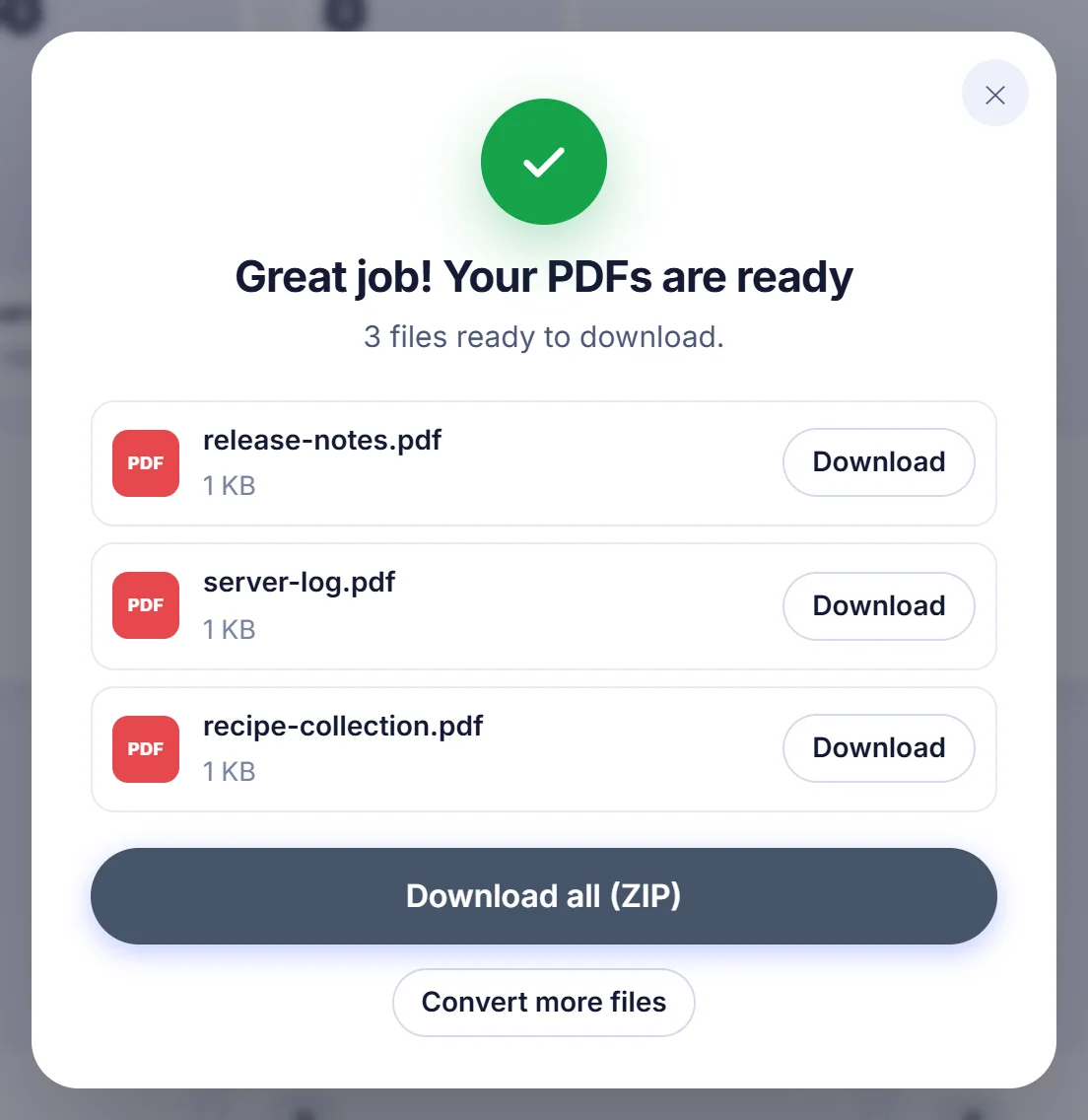
Download one PDF per file, merge everything into a single document, or grab a batch as a ZIP archive.
Why a plain text file deserves a proper page
A .txt file is the most portable thing on a computer, and also the least presentable. Print it from a basic editor and you get thin margins, no page numbers and a font chosen by accident. Send it to someone on Windows from a Mac and the accented letters can turn into strange symbols. A PDF settles all of that: fixed pages, a chosen typeface, and the same appearance in every reader.
Typical reasons: handing in a README or meeting notes as an attachment, archiving server logs for an audit, printing a configuration file for a review, or turning a CSV export into something a manager will actually read.
How Text to PDF reads what you give it
The converter first decides what kind of text it is looking at, using the file extension and then the content itself, and picks a layout to match:
- Plain prose is set in a clean sans-serif face with comfortable line spacing and wraps at the margin like a normal document.
- Markdown is rendered, not printed raw. Hash-mark headings become real headings with a thin rule under the top two levels, bullet and numbered lists get proper markers and indents, quotes get a grey bar on the left, fenced code sits on a light grey panel, and pipe tables become drawn tables. Bold stays bold. Link text is kept, though the address itself is dropped and nothing is clickable.
- CSV and TSV data turns into a ruled table. The delimiter (comma, semicolon, tab or pipe) is guessed for you, quoted cells with commas inside are respected, the first row is printed in bold and repeated at the top of every page, alternate rows are lightly shaded, and columns that hold numbers are right-aligned.
- Source code and JSON switch to a monospace font with line numbers in a gutter. Minified JSON is indented so you can follow its structure.
- Logs and ASCII art (.log files, or text whose columns are lined up with spaces or box-drawing characters) keep a fixed-width font so everything stays aligned. Colour escape codes from terminal output are removed instead of showing up as junk.
If the guess is wrong, the advanced settings let you force a layout: plain, code, formatted Markdown, or table.
Every setting in the options window
- Font: Auto, Sans, Serif (bookish) or Mono. Auto uses monospace for code, logs and aligned text, and sans for the rest.
- Page size: A4, US Letter, US Legal, A5 or A3. The first suggestion follows your browser language, so visitors in the US start on Letter.
- Orientation: Auto, Portrait or Landscape. On Auto, a CSV or TSV table too wide for an upright page is turned sideways by itself.
- Margins: Narrow (12.7 mm), Normal (20 mm) or Wide (30 mm).
- Font size from 8 to 24 pt and line spacing of 1.0, 1.15, 1.5 or 2.0.
- Title header: none, a large title on page one, or a small running title at the top of every page. With a single file you can edit that title, and it also becomes the name of the download.
- Line numbers for plain text and code, and page numbers written as "Page 1 of N" at the bottom centre or bottom right.
- Advanced: text encoding, tab width of 2, 4 or 8 spaces, whether the first table row is a header, and JSON pretty-printing.
Your layout choices are remembered in this browser, so the next document opens with the same paper and font.
Pasting instead of uploading a file
Much of the text people want as a PDF is not sitting in a file at all. It is in an email draft, a chat window or a few cells of a spreadsheet. Press the paste button, or simply press Ctrl+V (Cmd+V on a Mac) anywhere on the page, and a large text box opens with a live count of characters, words and lines. You can name the PDF there before continuing. Cells copied from a spreadsheet arrive tab-separated, which the tool recognises as a table. After downloading, an "Edit text" button takes you back to the box with your words still in it.
Several files: separate PDFs or one bound document
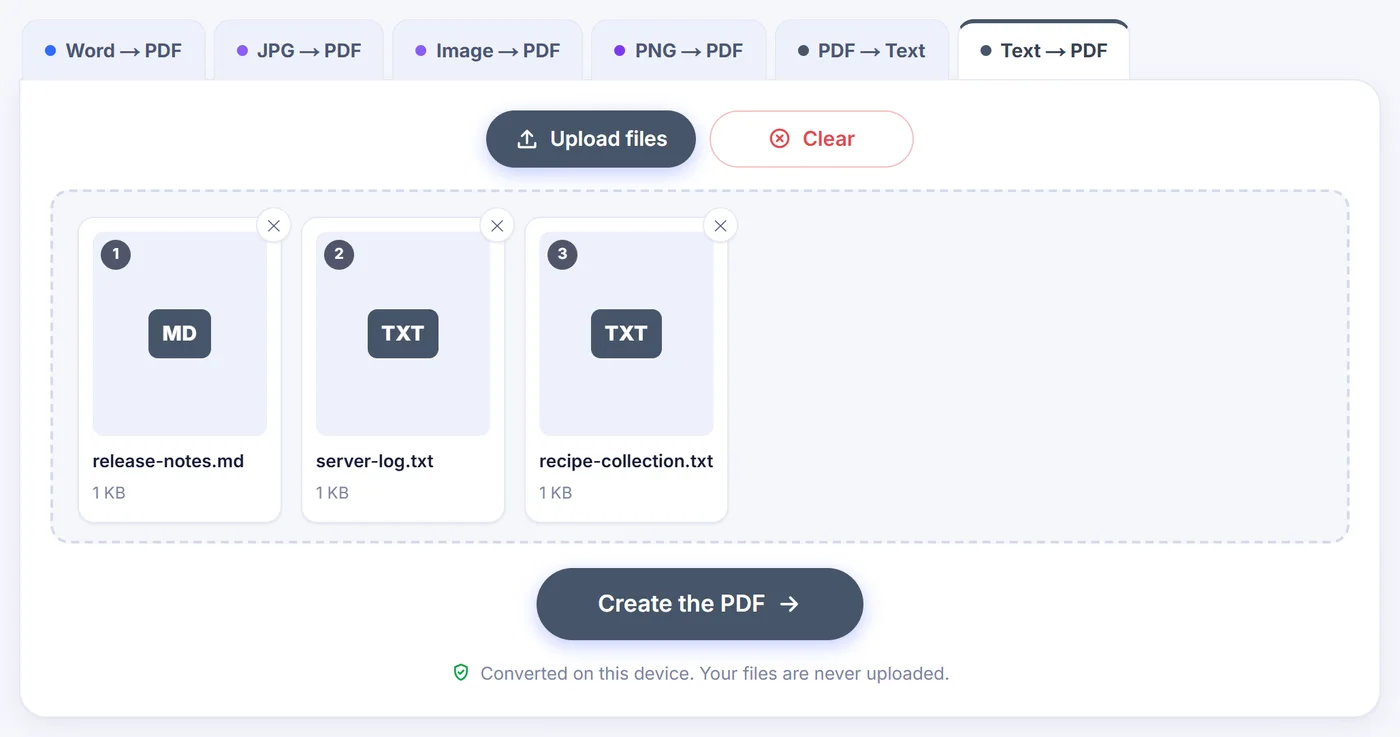
Add several notes at once, up to 20 per batch, and drag the cards into the order you want. In the options window you will see each file listed with the layout detected for it, and a drop-down lets you preview any of them. By default every text file becomes its own PDF named after the original file, and the batch can be saved as a single ZIP. Switch on Combine into one PDF and the files are joined in the order shown, each starting on a fresh page, in a document called combined-text.pdf. Page numbering then runs across the whole thing.
Accents, alphabets and the odd character out
Files saved in UTF-8 or UTF-16 are read correctly, and so are older Western text files saved with the classic Windows-1252 encoding. If letters still look wrong in the preview, pick the right encoding by hand: Windows-1250 for Central European languages, Windows-1251 or KOI8-R for Russian, ISO-8859-2 or ISO-8859-15 among others. When the text contains characters beyond basic Western ones, a Unicode font is embedded, which covers Latin with all its diacritics, Greek and Cyrillic. Chinese, Japanese, Arabic or emoji are not in that font. The preview warns you, says how many kinds of character are affected and shows a few examples of what would print as empty boxes.
In every case the result contains genuine text. You can search it, select a paragraph and copy it back out.
Tips and quick fixes
- A very long log. Choose Single spacing and 9 pt Mono to fit many more lines per page. For text longer than about 400,000 characters, the preview shows an approximate page count to stay fast.
- A table spills off the page. Leave orientation on Auto or pick Landscape, use Narrow margins, or lower the font size. Extremely wide tables are shrunk automatically.
- Want a page break at a fixed point? In the plain text and code layouts, a form-feed character starts a new page.
- "This file is already a PDF" or a note about Word, Excel, RTF or images means the file is not plain text. Those formats have their own converters in the tabs above. If a .csv, .json, .log or source file is not accepted by the upload box, open it, copy everything and paste it instead: the layout is detected from the content.
- On a phone everything works the same, but huge files need memory, so split them if the browser complains.
Your text stays on your device
The page loads a small PDF engine into your browser and builds the document there, on your own processor. Nothing you paste or drop is transmitted, there is no account and no watermark, and closing the tab wipes it all.
Frequently asked questions
How do I convert a TXT file to PDF for free?
Drop the .txt file on this page, adjust the font and margins if you like, and press the convert button. The PDF is created in your browser and costs nothing.
Can I paste text and save it as a PDF?
Yes. Click "Or paste text" or press Ctrl+V on the page, paste your text into the box, give the file a name and continue to the options.
Does it keep Markdown formatting?
Headings, lists, quotes, code blocks, pipe tables and bold text are rendered. Italic and strikethrough markers are removed, and links keep their text but are not clickable.
Will the text in the PDF be searchable?
Yes. The words are written as real text, so you can search, select and copy them in any PDF reader.
Why do some characters show as empty boxes?
The built-in fonts cover Latin, Greek and Cyrillic. Scripts such as Chinese or Arabic, and emoji, are not included, and the preview lists them before you convert.
Can I combine several text files into one PDF?
Yes. Add up to 20 files and turn on "Combine into one PDF". Each file begins on a new page of a single document.